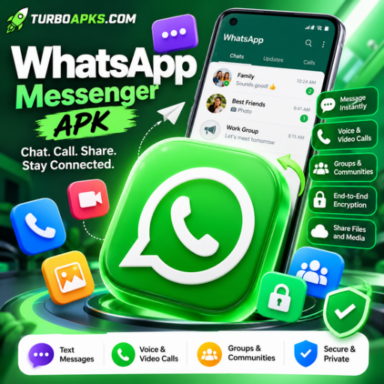
WhatsApp Messenger is a popular messaging app for Android that lets you send text messages, photos, videos, voice notes, stickers, and documents. Enjoy end-to-end encrypted chats, HD voice and video calls, group chats, communities, Status updates, and privacy features.
Connect your conversations across Android, WhatsApp Web, and desktop devices, with convenient backup options and Meta AI integration where available. Download the official app to stay connected with friends, family, and colleagues anytime, anywhere with an internet connection.
What Is WhatsApp Messenger?
WhatsApp Messenger is a free messaging and calling application developed by WhatsApp LLC, part of Meta. It is available for Android phones, iPhones, computers, and other supported devices. The application uses an internet connection to send messages and make calls. You generally don’t need a separate paid messaging subscription, though your mobile network provider may charge you for mobile data.
Users can register with a phone number, find contacts who use the service, and start conversations. They can also send photographs, videos, documents, voice notes, and other supported files. Its main purpose is to make communication simple and convenient, whether people are sitting in the same house or living thousands of miles apart.
How Does It Work?
The application connects your device to the messaging service through the internet. Here is a simple example:
- You install the application on your smartphone.
- You register and verify your phone number.
- You allow access to contacts if you want to find people already using the service.
- You select a contact and open a conversation.
- You send a message, photograph, video, or voice note.
- The recipient receives the message when their device can connect to the service.
You can also use supported calling features to communicate with other users. Remember that an internet connection is normally required for sending messages and making calls. Without internet access, these features may not work until your connection returns.
Why Choose This Whatsapp Messenger App?
There are many messaging applications available, so choosing the right one depends on your needs.
This application is popular because it combines several communication tools in one place.
1. Simple and Easy to Use
The interface is designed around conversations. Users can open a chat, type a message, attach a file, or start a call without learning complicated settings.
This makes it useful for beginners as well as experienced smartphone users.
2. Stay Connected With Family and Friends
You can create group conversations for family members, friends, classmates, or colleagues.
For example, a family group can help everyone stay informed about birthdays, shopping plans, family events, and important announcements.
3. Voice and Video Calling
You can make voice calls when you want to speak to someone and video calls when you want to see them.
These features can be helpful for people who live far away from their relatives or need to discuss something quickly.
4. Share Different Types of Files
The app supports sharing photographs, videos, documents, and voice messages. This can be useful for students, freelancers, photographers, and small business owners.
A wedding photographer, for instance, might use it to discuss an event schedule with a client. However, important photographs should also be stored in a reliable backup location.
5. Works Across Supported Devices
You can connect your account to supported computers and other devices. This makes it easier to reply to messages while working at a desk.
You can learn more about supported devices through the official WhatsApp download page.
Features of WhatsApp Massager
The application offers several features that help people communicate, share information, and manage conversations.
Text Messaging
Text messaging is one of its most important features. You can send short messages, longer explanations, links, and other supported content.
Delivery indicators help you understand whether a message has been sent, delivered, or read, depending on the available settings.
Voice Messengers
Sometimes typing a long message takes too much time. Voice messages allow you to record your words and send them directly to a contact or group.
This feature is helpful when you are busy or want to explain something in a more personal way.
Voice and Video Calls
You can make voice and video calls over the internet. Group calling also allows several participants to communicate together.
The number of participants supported can depend on the calling feature and current service limits. The official app listing describes support for calls with up to 32 people.
Group Chats
Group chats allow multiple people to participate in one conversation. They are useful for:
- Family discussions.
- School and study groups.
- Business communication.
- Event planning.
- Sharing announcements with a team.
Group administrators can manage certain settings and control who is allowed to make particular changes.
Status Updates
Status allows you to share text, photographs, videos, and other supported updates with selected contacts. These updates normally disappear after 24 hours. You can adjust your audience settings to control who can see your updates.
For example, you might share a photograph with close friends without sharing it with every person in your contact list.
Sharing Documents and Media
You can send documents, images, videos, and other supported files through conversations.
This can save time when sharing work materials or personal memories. However, large files may use considerable mobile data, so Wi-Fi can be a better option when available.
Location Sharing
Location sharing lets you send your location to a person or group. Live location sharing can also help someone follow your movements for a limited period.
Only share your location with people you trust. You can stop live location sharing when you no longer need it.
Privacy Controls
Privacy settings let you control who can see certain account information, including your profile photograph, online status, and Status updates. Other available protections include chat locking, disappearing messages, blocking unwanted contacts, and two-step verification. Feature availability and menu names can change as the application receives updates.
Image of the Whatsapp Messenger

Tips for Using the App Effectively
You do not need to use every feature to benefit from the application. A few simple habits can make your experience easier and safer.
1. Organize Your Conversations
Keep important conversations easy to find. You can use available chat management features, such as pinning important conversations, to access frequently used chats more quickly.
For example, you might keep your family group and important work conversations near the top of your chat list.
2. Control Your Privacy Settings
Open the privacy section in your account settings and review who can see your personal information.
Choose settings that match your comfort level. You do not need to make every detail visible to everyone.
3. Back Up Important Conversations
If you want to preserve your messages, configure chat backups using the options available on your device.
Review the backup settings carefully. If you want additional protection, check whether encrypted backups are available and enable them when appropriate. Remember that a backup is different from the security of messages being sent between people.
4. Reduce Mobile Data Usage
If your internet package is limited, review your media download settings.
You can choose when photographs, videos, and documents download automatically. Using Wi-Fi for large downloads may help you manage your mobile data.
5. Keep the App Updated
Updates can provide new features, compatibility improvements, and security fixes.
Download updates from trusted sources rather than installing unknown files from random websites.
6. Manage Notifications
If you receive too many notifications, adjust your notification settings or mute less important group conversations.
This can help you concentrate on work, study, or family activities without constantly checking your phone.
7. Think Before Sharing
Avoid sending personal documents, passwords, verification codes, or sensitive photographs to people you do not trust.
Even when a messaging service protects the transmission of a message, the person receiving it may still save, copy, or share its contents.
Security and Privacy
Security is an important consideration when choosing any messaging application. WhatsApp Messenger provides several protections, but users should understand what these protections do and what they cannot guarantee.
What Is End-to-End Encryption?
End-to-end encryption is a security method that protects a message so that only the intended participants have the necessary keys to read it. Think of it like sending a letter inside a locked box. The sender locks the box, and the intended recipient has the key to open it. According to WhatsApp’s official privacy information, personal messages and calls are protected by end-to-end encryption by default. This means WhatsApp itself cannot read the contents of these protected personal conversations.
However, this protection does not mean every type of information associated with an account is private. Account details, technical information, and some information about how the service is used may be processed separately. You can read more in the official WhatsApp Privacy information.
Enable Two-Step Verification
Two-step verification adds an extra layer of protection to your account. When available, it requires an additional PIN during certain account verification processes. This can make it harder for someone to take control of your account. Choose a PIN that is difficult for others to guess, and never share verification codes with strangers.
Be Careful With Unknown Links
Scammers sometimes send messages pretending to represent banks, delivery companies, online services, or people you know. A suspicious message might claim that you have won a prize or must urgently verify your account. Before opening a link, check who sent it and whether the request makes sense. Never share your verification code simply because someone asks for it.
Use Official Download Sources
Downloading applications from unfamiliar websites can expose your device to modified or harmful files. For greater safety, use the official download options:
- Android: WhatsApp on Google Play
- iPhone: WhatsApp on the Apple App Store
- Official website: WhatsApp.com
Avoid unofficial modified versions that promise unlimited features or special privacy options. Such versions may introduce security risks or lead to account restrictions.
Best Alternatives to WhatsApp Messenger
Different people have different communication needs. Some prefer large communities, while others prioritize particular privacy features or integration with other services. Here are several alternatives worth considering.
1. Telegram
Telegram is a messaging platform that supports individual conversations, groups, channels, and file sharing. It can be useful for people who want to follow public channels or participate in large communities. One important difference is that Telegram’s regular cloud chats are not end-to-end encrypted by default. Its separate Secret Chats feature provides end-to-end encryption for supported one-to-one conversations. Official website: Telegram.org
2. Signal
Signal focuses strongly on private communication. It supports messages, voice calls, video calls, and group conversations. It is worth considering if privacy is one of your main priorities. Official website: Signal.org
3. Facebook Messenger
Facebook Messenger allows people to communicate through text, voice calls, video calls, and other messaging features. It may be convenient for people who already use Facebook and want to communicate with their Facebook contacts. Official website: Messenger.com
4. Viber
Viber provides messaging, voice calls, video calls, and group communication. Its features and calling options may vary by region and subscription. It can be another option for users who want an alternative communication service. Official website: Viber.com
Which Alternative Should You Choose?
The right choice depends on how you communicate. Choose Telegram if you are interested in public channels and large communities. Consider Signal if privacy is your main concern. Facebook Messenger may suit you if you regularly communicate with Facebook contacts. Viber is another option for messaging and calling.
Before switching, check whether your family, friends, or customers already use the alternative. A messaging app is most useful when the people you need to contact can also use it.
Pros and Cons of Whatsapp Messenger
Whatsapp Messenger is before installing an application, it is helpful to understand its main advantages and disadvantages.
Advantages
- Free to download and use for standard messaging and calling features.
- Supports text messages, voice messages, voice calls, and video calls.
- Makes it easy to create groups for families, friends, and businesses.
- Supports sharing photographs, videos, and documents.
- Offers Status updates for sharing everyday moments.
- Provides end-to-end encryption for personal messages and calls.
- Supports linking accounts to compatible computers and other devices.
- Includes privacy controls and additional account security options.
Disadvantages
- Requires an internet connection for normal messaging and calling.
- Voice and video calls may consume significant mobile data.
- Registering an account requires a phone number.
- Unwanted messages and scam attempts can still occur.
- Media files and backups can use considerable storage space.
- Some features may work differently across devices or regions.
- People who do not use the service may need another way to communicate with you.
Overall, the application is a convenient choice for everyday communication, but users should manage their privacy settings, protect their accounts, and remain careful when receiving unexpected messages.
Frequently Asked Questions About Whatsapp Messenger
1. Is Whatsapp Messenger Free to Use?
Yes. The application is free to download, and its standard messaging and calling features do not require a separate subscription. However, mobile data charges may apply depending on your internet plan.
2. Can I Use It on My Computer?
Yes. You can connect your account to supported computers through Whatsapp Messenger Web or the desktop application.
Visit the official WhatsApp download page to explore the available options.
3. Is It Safe for Private Conversations?
Personal messages and calls are protected by end-to-end encryption by default. However, you should still protect your account, review your privacy settings, and avoid sharing sensitive information with untrusted people.
4. Can I Make Video Calls?
Yes. The application supports individual and group video calls. You need a suitable device and an internet connection.
5. Do Status Updates Disappear Automatically?
Yes. Standard Status updates disappear after 24 hours. You can also control which contacts are allowed to view them.
6. Can I Use It for My Small Business?
Yes. You can communicate with customers, answer questions, send updates, and share product information. For businesses that need tools such as business profiles and automated replies, the separate Whatsapp Messenger Business application may be more suitable. You can learn more through the official WhatsApp Business Help Center.
Conclusion
Whatsapp Messenger is a practical communication tool for people who want to send messages, make calls, share files, and stay connected with friends, family, and colleagues. Its simple interface makes it accessible to beginners, while features such as group chats, Status updates, device linking, and privacy controls provide additional convenience. However, choosing a messaging application involves more than looking at its features. You should also consider privacy, account security, internet usage, and the communication needs of the people around you.
For the best experience, keep your application updated, use official download sources, enable additional account protection, and think carefully before sharing personal information. If you are looking for a straightforward way to communicate with people around the world, this application is worth considering. Compare its features with alternatives such as Telegram and Signal, then choose the service that best fits your everyday needs.